Mermaid: A Powerful Tool for Software Architecture Diagrams in the Age of AI

Introduction
In this article, I’ll show you how to use Mermaid to create diagrams and how to combine it with AI to improve software architecture documentation.
The goal is not just to explain the syntax, but to show how Mermaid fits into a modern development workflow where documentation, code, and AI work together.
What You’ll Find in This Article
In this post, we’ll cover:
What Mermaid is and why it matters
How to use Mermaid in practice
Mermaid syntax fundamentals
Themes and configuration options
Hands-on examples with code, explanations, and diagram results
Links to official Mermaid documentation and specific diagram types
This is my first deep dive into Mermaid as a tool for software architecture, and I hope it helps you understand when and how to use it effectively.
What is Mermaid?
Mermaid is a text-based diagramming language that allows you to generate diagrams from simple, readable text.
Instead of drawing diagrams manually using visual tools, you describe them using a code-like syntax, and Mermaid renders them automatically. This approach makes diagrams easier to version, review, and maintain, especially in documentation and software architecture contexts.
Because diagrams are defined as text, they integrate naturally with tools developers already use, such as Markdown, GitHub, and documentation pipelines.
How to Use Mermaid
Mermaid’s syntax defines the structure and type of a diagram through a specific sequence of declarations, content definitions, and optional configuration blocks.
It’s important to understand that Mermaid is a diagram language, not a drawing tool. Each diagram type has its own grammar, rules, and keywords.
1. Diagram Type Declaration
Every Mermaid diagram starts with a diagram type declaration, which tells the parser what kind of diagram it should generate.
Some common examples include:
sequenceDiagramerDiagramflowchartclassDiagram
This initial line is essential. Without it, Mermaid does not know how to interpret the syntax that follows.
Exception:
The only case where the diagram type is not the first line is when you include a Frontmatter configuration block at the very top of your code.
Frontmatter Configuration Block
The Frontmatter is an optional configuration block placed at the beginning of a Mermaid diagram. It allows you to customize themes, colors, fonts, and other style-related settings.
In practice, it works as metadata that configures how the diagram should be rendered before the diagram itself is parsed.
2. Defining Content and Structure
After the diagram type declaration, the syntax defines the content and structure of the diagram.
Examples:
In an Entity Relationship Diagram, the code following the
erDiagramdeclaration defines entities and their relationships.In flowcharts, you define nodes, shapes, and the connections between them.
In class diagrams, you describe classes, attributes, methods, and relationships.
Precision is crucial.
Misspellings or unknown keywords will break the diagram, although some parameters may fail silently. To avoid this, it’s highly recommended to create Mermaid diagrams in an IDE with Mermaid support or plugins, which provide syntax validation and feedback.
3. Comments
You can add comments to your Mermaid code using %%.
Comments are not rendered in the final diagram, but they are extremely useful for explaining intent, grouping sections, or improving readability for other developers.
Example:
%% =========================
%% COMMENT
%% =========================
4. Themes
A theme is a configuration option in Mermaid that defines the diagram’s color scheme and visual style.
Themes allow you to customize:
Colors
Font styles
Backgrounds
General visual appearance
This is especially useful when you want diagrams to match your brand, documentation style, or presentation theme.
Configuring Themes
You can configure themes in two main ways:
1. Frontmatter (metadata)
You can define the theme at the very beginning of your code block using a configuration section:
---
config:
  theme: 'forest'
---
flowchart LR
  A --> B
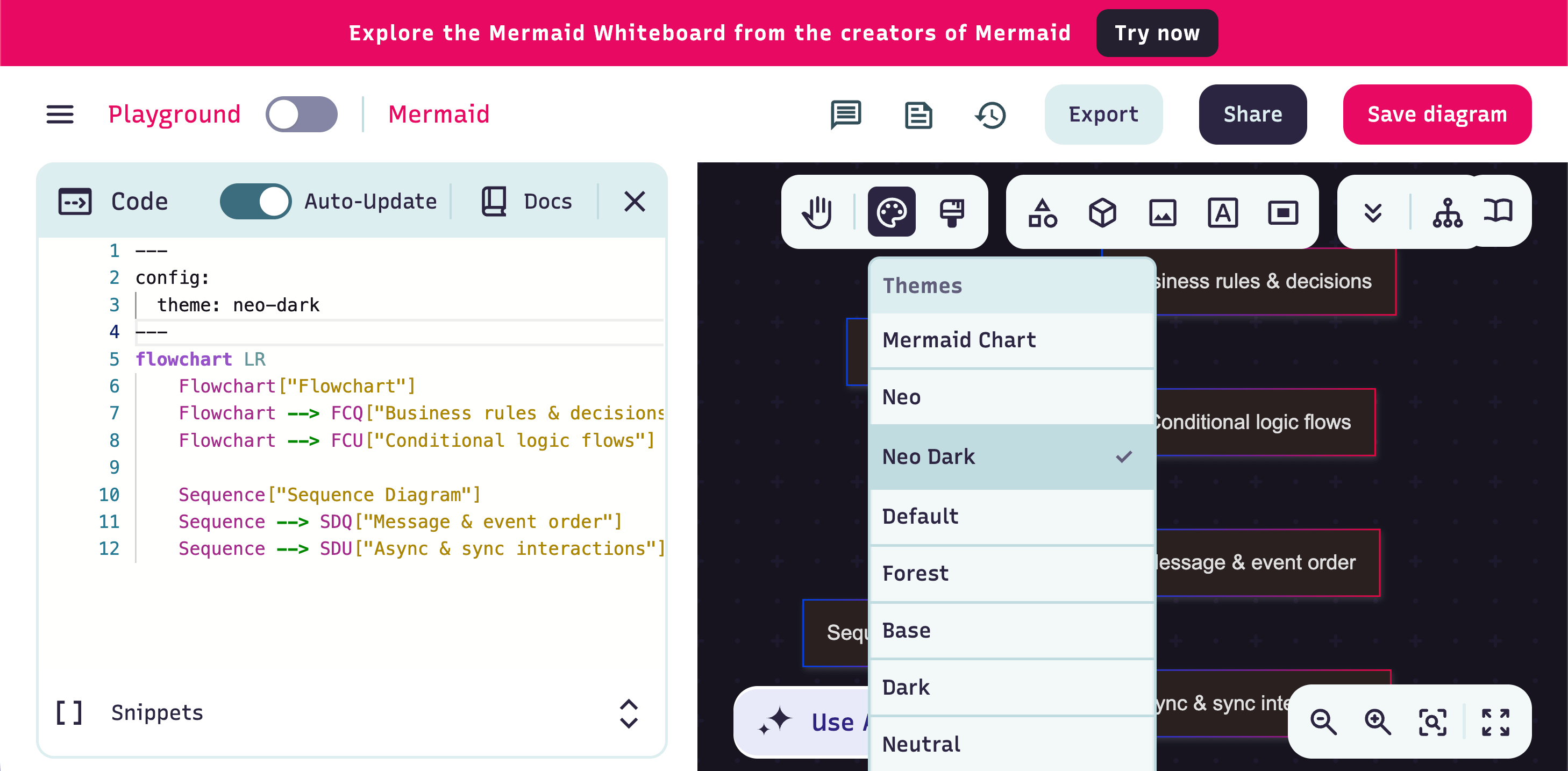
2. Mermaid Live Editor
The Mermaid Live Editor provides a dedicated configuration section where you can manually adjust values to change the diagram’s appearance interactively.
Hands-on: Practical Mermaid Diagram Examples
Let’s look at some practical Mermaid diagram types and when to use each one.
These examples focus on software architecture, domain modeling, and system communication, the most common use cases in real projects.
1. Flowchart
Use when:
Business logic, decision-making, rules, and conditional flows.
Example:
flowchart TD
    Start[Start] --> CheckBalance{Enough balance?}
    CheckBalance -->|Yes| Approve[Approve payment]
    CheckBalance -->|No| Reject[Reject payment]
Result:
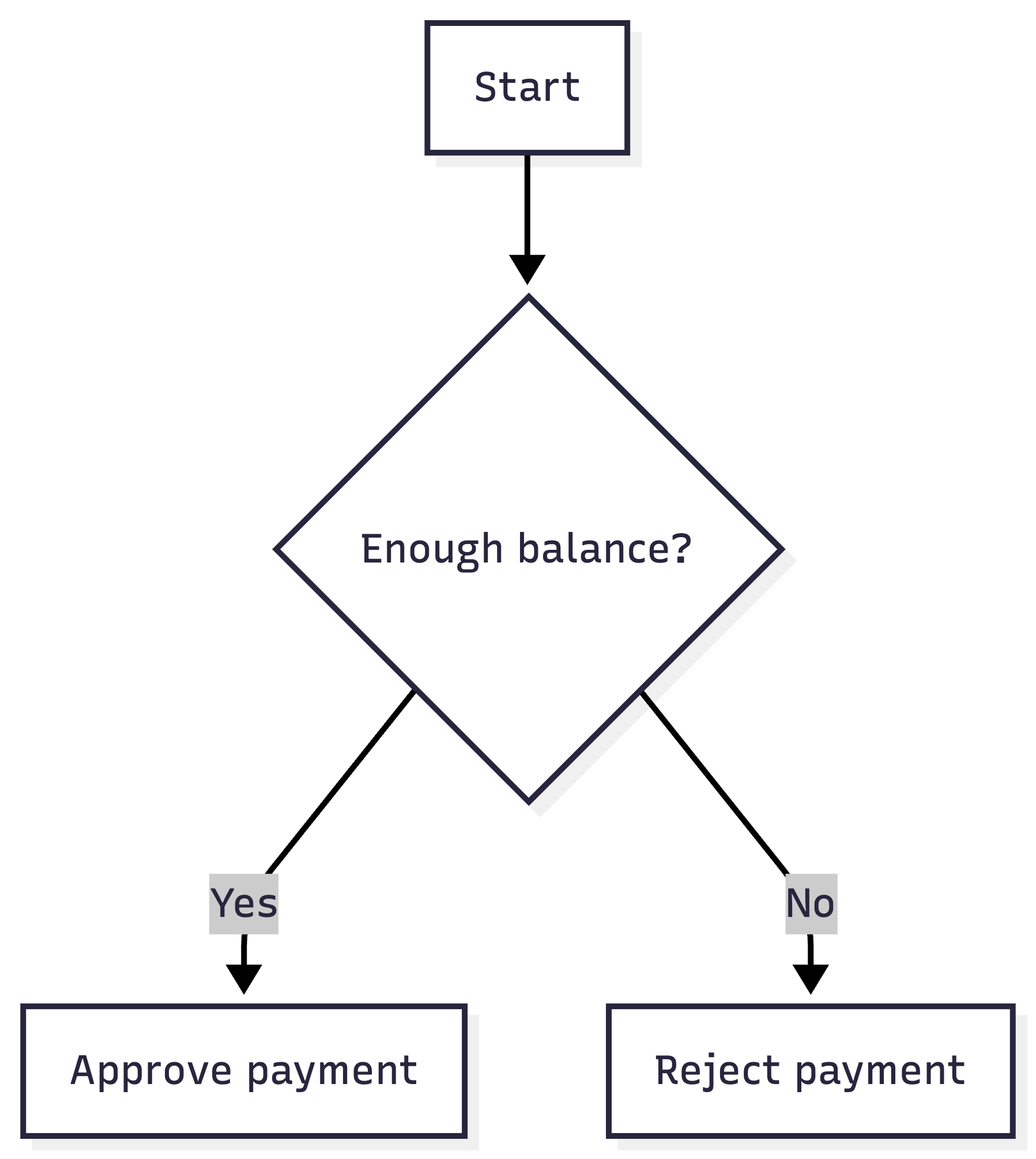
What this diagram explains:
➡️ Decision-making and conditional paths
Header:
flowchart→ diagram typeTD→ direction (Top → Down)
Possible directions:
LR= Left → RightRL= Right → LeftTB= Top → BottomBT= Bottom → Top
Nodes (Shapes):
[Text]→ Rectangle → Process{Text}→ Diamond → Decision((Text))→ Circle → Start / End
Arrows:
Start --> End-->= flow directionThe arrow shows order and progression
Labeled Arrows
Decision -->|Yes| Approve|Yes|= condition or label on the transition
2. Sequence Diagram
Use when:
Message flow, commands, events, and interactions between components.
Example:
sequenceDiagram
    participant Client
    participant API
    participant Service
    participant EventBus

    Client->>API: Request
    API->>Service: Command
    Service-->>EventBus: Domain Event
Result:
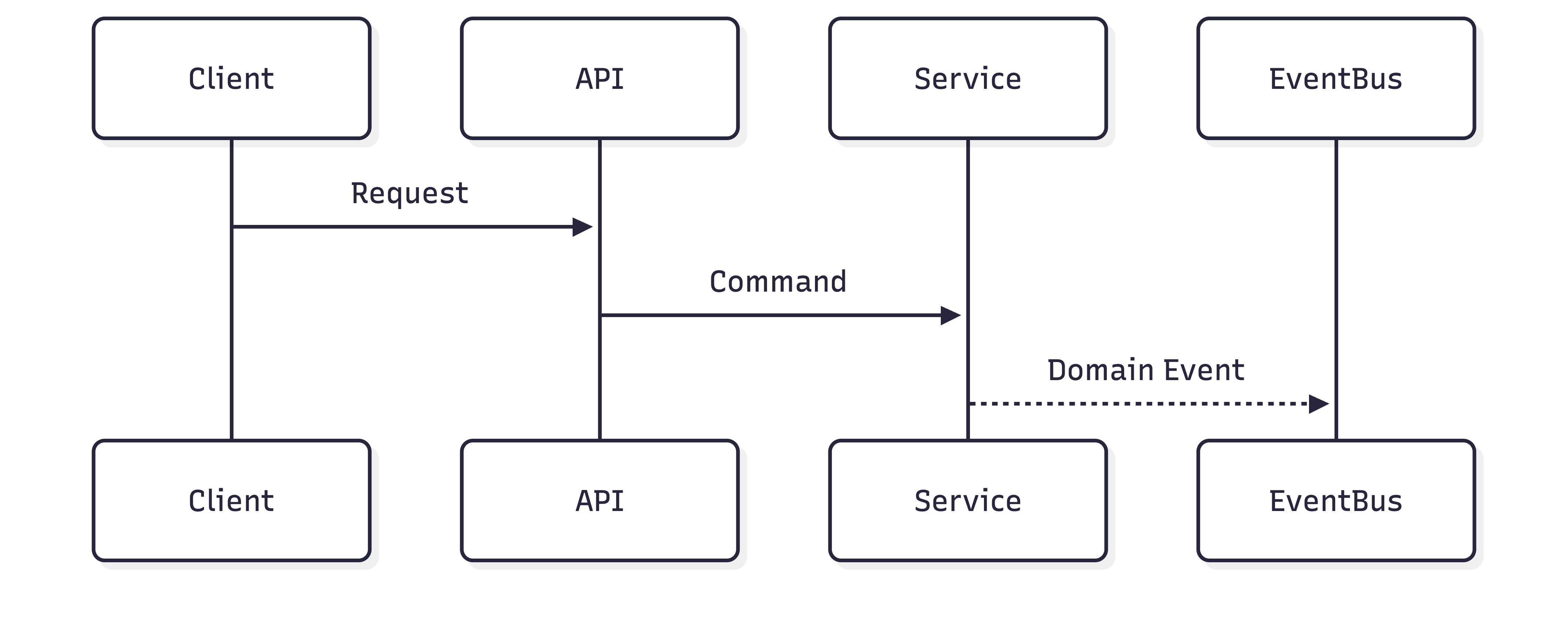
What this diagram explains:
➡️ Who talks to whom, and in which order
Header:
sequenceDiagram→ diagram type
Participants:
participant Client
participant API
participant Service
participant EventBus
Defines actors, services, or systems involved in the interaction.
Relationship:
API->>Service: Command->>= synchronous call-->>= asynchronous message:= message label
3. Class Diagram (UML)
Use when:
Domain modeling, code structure, and object relationships.
Example:
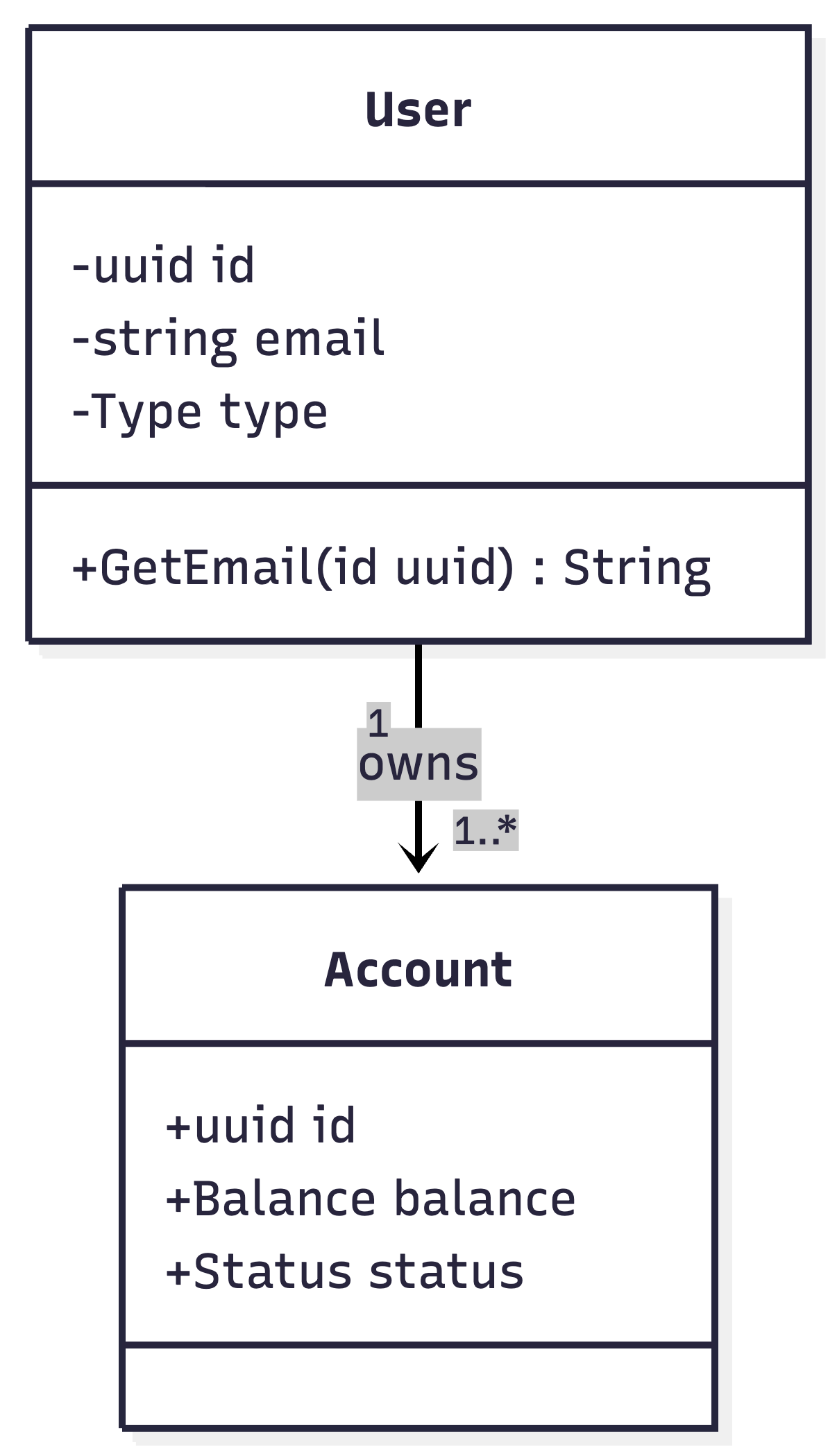
classDiagram
    class User {
        -uuid id
        -string email
        -Type type
        +GetEmail(id uuid) String
    }

    class Account {
        +uuid id
        +Balance balance
        +Status status
    }

    User "1" --> "1..*" Account : owns
Result:
Header:
classDiagram = diagram type
Class Definition:
structure = class + class name + { properties and methods }
class User {
   +ID id
}
Visibility Symbols:
Symbols:
public =
+private = -
protected = #
Mermaid documents intent — it does not enforce visibility rules like a compiler.
Attributes and Methods
-string email→ private attribute+GetEmail(id uuid) string→ public method returning a string
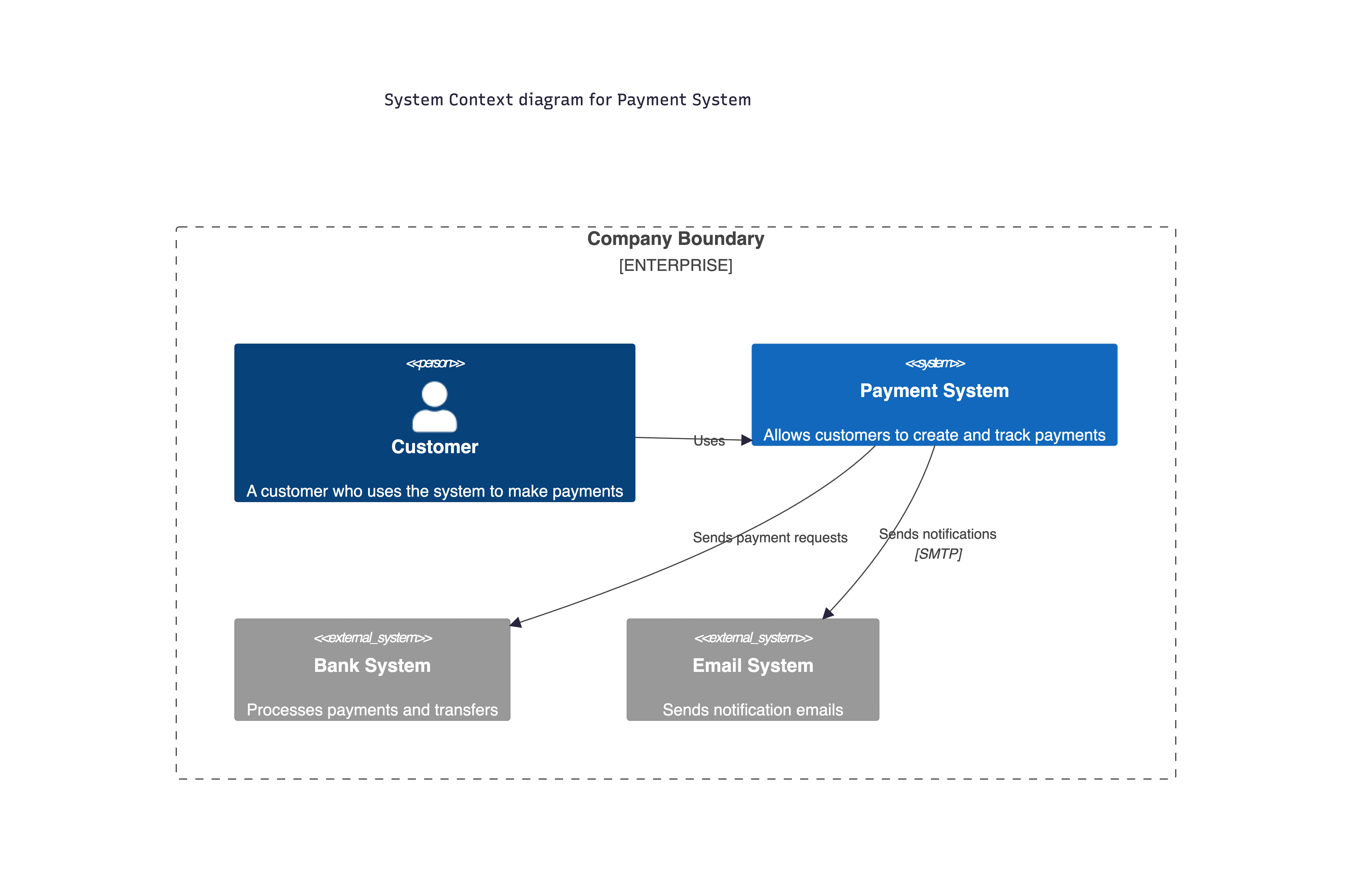
4. C4 Model (Context Diagram)
Use when:
High-level system context, ownership boundaries, and external dependencies.
Example:
C4Context
    title System Context diagram for Payment System

    Enterprise_Boundary(b0, "Company Boundary") {

        Person(customer, "Customer", "A customer who uses the system to make payments")

        System(paymentSystem, "Payment System", "Allows customers to create and track payments")

        System_Ext(bankSystem, "Bank System", "Processes payments and transfers")

        System_Ext(emailSystem, "Email System", "Sends notification emails")
    }

    Rel(customer, paymentSystem, "Uses")
    Rel(paymentSystem, bankSystem, "Sends payment requests")
    Rel(paymentSystem, emailSystem, "Sends notifications", "SMTP")
Result:
Header:
C4Context= diagram type
Ownership Boundary:
Enterprise_BoundaryRepresents:
A single organization
A single ownership boundary
Everything inside belongs to the same company.
Person:
Person(customer, "Customer", "A customer who uses the system")Represents a human user.
1st argument: internal ID
2nd: display name
3rd: description (optional)
System:
System(paymentSystem, "Payment System")The main system you are documenting — the center of the C4 context diagram.
External System:
System_Ext(bankSystem, "Bank System")Represents a system:
Outside your ownership
Still essential to your system
Relationship:
Rel(paymentSystem, emailSystem, "Sends notifications", "SMTP")Meaning:
Direction:
paymentSystem → emailSystemDescription: “Sends notifications”
Technology: SMTP
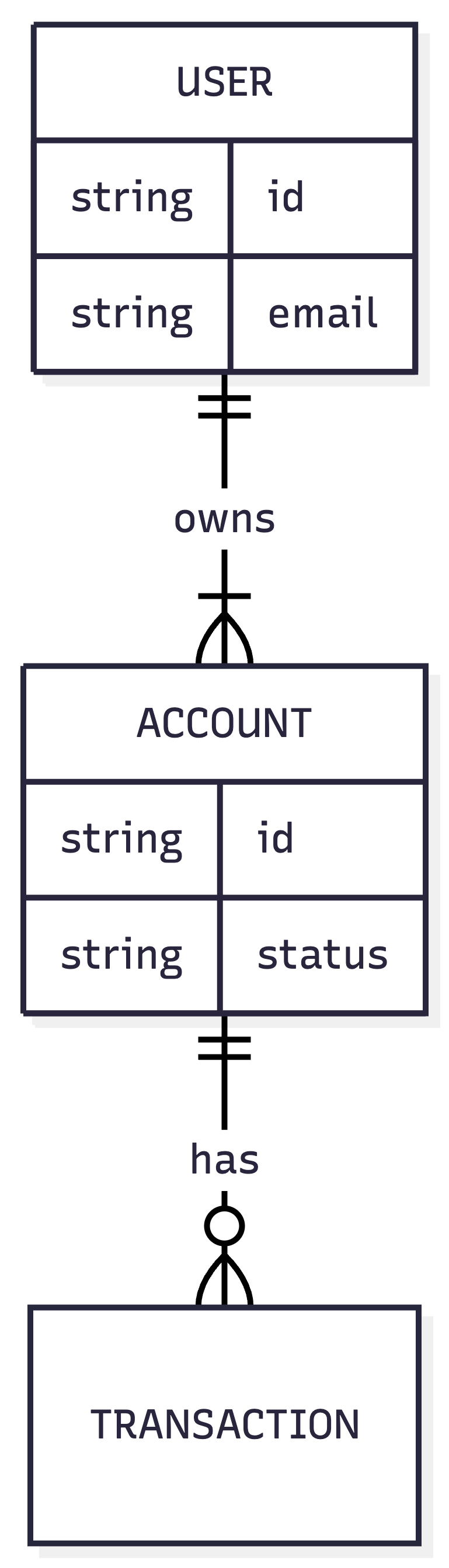
5. ER Diagram (Entity Relationship)
Use when:
Data modeling and database relationships.
Example:
erDiagram
    USER ||--|{ ACCOUNT : owns
    ACCOUNT ||--o{ TRANSACTION : has

    USER {
        string id
        string email
    }

    ACCOUNT {
        string id
        string status
    }
Result:
Header:
erDiagram= diagram type
Relationships:
USER ||--|{ ACCOUNT : owns||--|{→ One-to-many, with at least one on the many side--→ relationship line:→ relationship label
Entities:
USER {
    string id
    string email
}
Defines entity attributes and types.
Try It Yourself
To create and test your Mermaid diagrams interactively, use:
👉 https://mermaid.live/
AI + Mermaid: How AI Enhances Software Architecture Diagrams
Mermaid works exceptionally well with AI: both before a project starts and after the system is already in production.
Because Mermaid diagrams are written as structured text, AI tools can read, interpret, and generate them with high accuracy. This makes Mermaid a natural bridge between architecture documentation and AI-assisted development.
Before the Project Starts
At the early stages of a project, Mermaid can be used to describe:
UML class diagrams
Architectural layers (for example, DDD layers)
High-level system boundaries and responsibilities
These diagrams can then be provided to AI tools to:
Generate an initial project structure in a chosen programming language
Suggest package organization and naming
Translate architectural intent into code scaffolding
In this phase, Mermaid acts as a source of truth for architectural decisions.
After the Project Already Exists
When a project is already in place, Mermaid becomes equally valuable.
You can:
Create diagrams from scratch to document the current architecture
Store them in a dedicated folder (for example,
/docs)Version them alongside the codebase using GitHub
This approach ensures that architectural documentation evolves together with the system, instead of becoming outdated or disconnected from reality.
Why AI Works So Well with Mermaid
AI tools are especially effective with Mermaid because Mermaid is:
Structured – follows strict, well-defined syntax
Deterministic – the same input always produces the same output
Text-based – easy to read, generate, diff, and version
These properties make Mermaid diagrams highly compatible with large language models.
Living Architecture Documentation
The combination of AI + Mermaid transforms architecture documentation into a living artifact.
Instead of static diagrams created once and forgotten, diagrams become:
Versioned
Continuously updated
Actively used by developers and AI tools throughout the system’s lifecycle
This shift is essential in the age of AI-driven software development.
Trade-offs
Like any tool, Mermaid has strengths and limitations. Understanding these trade-offs helps you decide when Mermaid is the right choice and when it isn’t.
Pros
Traditional diagramming tools are often manual, visual, and disconnected from code. As systems evolve, these diagrams quickly become outdated and unreliable.
With Mermaid, you can:
Understand complex systems through structured diagrams
Communicate design decisions clearly
Onboard new engineers faster
Keep documentation aligned with the current system behavior
Mermaid introduces a powerful idea: diagrams as code.
This means diagrams can be:
Versioned with Git
Reviewed in pull requests
Updated alongside code changes
Generated or updated automatically using AI
As a result, architecture documentation becomes more maintainable, scalable, and trustworthy.
Cons
Despite its advantages, Mermaid is not a universal solution.
Compared to fully visual tools, Mermaid offers less control over layout and fine-grained styling
For very large or highly interconnected systems, diagrams can become dense, harder to read, and difficult to navigate
When Should You Use Mermaid?
Mermaid works best when:
The architecture is mostly defined
You are documenting or refining an existing system
Diagrams must evolve together with the codebase
Versioning and code review matter
Automation and AI assistance add value
Documentation lives close to the repository
When Not to Use Mermaid
Mermaid may not be the best choice when:
Visual design and aesthetics are critical
Diagrams are primarily created or edited by non-engineers
You are in early discovery or whiteboarding mode
You need heavy customization or free-form layouts
Final Thought
Mermaid is not about replacing visual tools, it’s about optimizing documentation for modern software development.
In an ecosystem where code, documentation, and AI collaborate closely, diagrams as code is no longer a niche idea, it’s a practical advantage.
References
Oficial mermaid doc: https://docs.mermaidchart.com/mermaid-oss/intro/index.html
Mermaid theming documentation:
https://docs.mermaidchart.com/mermaid-oss/config/theming.htmlSyntax reference:
https://docs.mermaidchart.com/mermaid-oss/intro/syntax-reference.htmlArchitecture diagrams:
https://docs.mermaidchart.com/mermaid-oss/syntax/architecture.htmlVideos tutorial: https://docs.mermaidchart.com/mermaid-oss/ecosystem/tutorials.html#live-editor-tutorials
AI Diagram Generator Article: https://docs.mermaidchart.com/blog/posts/what-is-an-ai-diagram-generator-benefits-and-use-cases
Create architecture diagrams: https://docs.mermaidchart.com/blog/posts/introducing-architecture-diagrams-in-mermaid